Top Features for Remote Desktop Software
Remote desktop software enables users to operate a computer from a distant location as though they were physically present. It works by streaming the remote system’s display to the local device while transmitting keyboard and mouse inputs back. Commonly used for remote work, IT support, and collaboration, it provides seamless access to files, applications, and system settings over an internet connection. The top features for remote desktop software mentioned in this article will help you understand the software’s different functionalities and how those features help across different workspaces.
Screen Sharing
Screen sharing with remote desktop software allows users to view and control another computer’s display across a network. Key features include full‑screen sharing, multi‑monitor support, and options to restrict local access. A few solutions enable remote support, collaboration, and file access from virtually anywhere, typically through a session link or generated code for quick connections.
Benefits:
- Not only view, but also take full control of the remote computer to assist or collaborate.
- Choose to share one screen or multiple monitors for a complete view.
- Connections are typically encrypted and require explicit permission, ensuring safe access.
ScreenConnect
ScreenConnect is a comprehensive solution for remote support, system access, and online meetings. It enables users to repair computers, deliver updates, and manage devices remotely, while also providing tools for hosting seminars and presentations through virtual meetings. Screen sharing allows participants to share their computer screens with others in the meeting, enabling collaborative work and presentations. ScreenConnect users have scored the feature a 9.9 in the TrustRadius feedback review based on their user experience.
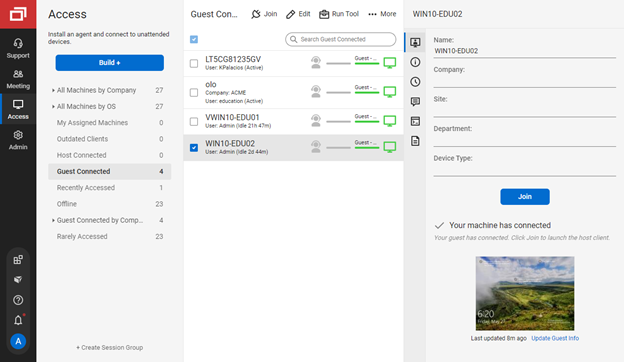
“My company uses ScreenConnect to support all of our remote users through support sessions and training sessions. It replaced Splashtop after using that platform for a year and LogMeIn for 3 years. It is my favorite of the bunch because of its ease of deployment and customization options for such a low price.”
Read David’s full review here.
File Transfer
Remote desktop software supports file transfer through familiar methods such as drag‑and‑drop, copy‑paste, and dedicated file manager windows. In many cases, users must enable drive sharing in the connection settings (MSTSC > Show Options > Local Resources) to map local drives to the remote session, ensuring seamless access and movement of files between computers.
Benefits:
- Files can be moved right away, without needing to sign out or use email/cloud tools.
- File transfers happen inside the remote desktop session, making support and remote work more efficient.
- Share files easily between different operating systems, including Windows, macOS, and Linux.
ISL Light
ISL Light is a software that provides both remote support and remote access. Businesses of all sizes can use it to quickly repair, update, and manage computers running Windows, Mac, or Linux. It also supports mobile devices, including Android and iOS, making it a versatile tool for IT teams. The software securely exchanges files with a remote computer without having to use email or FTP. ISL Light users have scored the feature a 9.3 in the TrustRadius feedback review based on their user experience.

“We use ISL Light AlwaysON mostly on company-owned computers. That makes it much easier to connect and help users that has less technology knowledge. And since most of our computers run Ubuntu Linux, that makes it also much more user-friendly. For some users, it’s just too complicated to explain how they connect and run client themselves.”
Read Robert’s full review here.
Over-the-Internet remote session
Over‑the‑Internet (OTI) remote sessions deliver flexibility, productivity, and cost efficiency by enabling access to work resources from any device, anywhere. They support rapid IT assistance, strengthen security through centralized data, and ensure business continuity during disruptions, while simplifying IT management and reducing hardware requirements.
Benefits:
- Users can easily reach the tools they need, work without office interruptions, and benefit from quicker IT fixes that reduce downtime.
- Applications and data are managed centrally, making updates easier. Security policies are enforced with encryption, such as RDP, so IT teams can provide secure support quickly.
- By enabling secure remote access to essential systems, organizations can keep running smoothly.
Splashtop
Splashtop is a remote access and support solution trusted by over 30 million users worldwide. Serving organizations of all sizes, it is positioned as a secure, high‑performance software tailored to diverse use cases. The software establishes a secure remote connection with computers outside the network firewall. Splashtop users have scored the feature a 9.3 in the TrustRadius feedback review based on their user experience.

“We use Splashtop across our whole organization at Seitz Foundations to support the needs of our clients remotely or without always having to go to the workplace of our clients. It addresses the need to be in a vehicle to go to a client’s workplace and so we can be much more productive by not always being in a vehicle.”
Read Alexander’s full review here.
Monitoring and alerts
Remote desktop software includes monitoring and alerts to help IT teams stay ahead of problems. These tools catch security breaches early, spot performance issues for quick resolution, and provide real‑time insights that improve productivity. By automating system checks and sending instant notifications about unusual activity or failures, monitoring shifts IT from reactive to proactive, ensuring smoother operations and stronger security.
Benefits:
- The system immediately flags unauthorized access, odd file transfers, or suspicious login attempts.
- User actions and access are tracked to make sure security rules are followed.
- Risky behavior is caught early, helping prevent data breaches before they happen.
LogMeIn Rescue
LogMeIn Rescue is a remote support solution for PCs, Macs, and mobile devices. It enables IT teams to deliver fast technical assistance while ensuring secure sessions for both support staff and end users. The software monitors CPU usage and memory utilization to proactively address issues. Receive alerts indicating attention needed. LogMeIn Rescue users have scored the feature a 9.5 in the TrustRadius feedback review based on their user experience.
“We use LogMeIn Rescue to log into client’s computers and guide them when they are having issues locating things. View errors on their machines and fix items in the software or on their computers when they have issues that need to be rectified. LogMeIn Rescue helps us to do these things pretty easily.”
Read the full review here.
Instant message
Adding instant messaging (IM) to remote desktop tools makes them more effective. IT professionals and remote employees can chat in real time while working, which improves collaboration, speeds up problem‑solving, and makes support more efficient.
Benefits:
- Instant messaging can feel easier than phone calls, and features like voice recognition help people with vision or hearing challenges.
- It reduces the need for long emails or extra meetings, making communication faster and more productive.
- IT staff can use chat to talk quietly with users or other technicians during a session, making teamwork on complex issues smoother.
RemotePC
RemotePC is a remote access solution that enables consumers, businesses, and IT professionals to securely connect to and control PCs and Macs from any device, including iOS and Android. It allows users to work from home or anywhere with ease. The software allows administrators to communicate via instant message with remote users. RemotePC users have scored the feature a 9.4 in the TrustRadius feedback review based on their user experience.

“RemotePC is used as a source to access my office computer. I have a check reader/scanner attached to my office PC and it can only be used by my office computer. I can log in and have someone run the checks through the reader and I am able to complete the deposit remotely.”
Read Anthony’s full review here.
Multi-platform remote control
Multi-platform remote control in remote desktop software delivers flexibility, stronger IT support, and cost efficiency. Users can securely access Windows, Mac, Linux, or mobile devices from anywhere, while IT teams managing multiple systems provide real-time training, and maintain business continuity—reducing travel expenses and hardware requirements.
Benefits:
- Work from anywhere, on any device. Remote desktop software supports BYOD and remote work without limits.
- Bring teams together in shared sessions to tackle tasks, exchange knowledge, and deliver interactive training.
- IT teams can troubleshoot instantly across platforms, reducing disruptions and cutting the costs of physical support.
Remote Desktop Manager
Remote Desktop Manager, developed by Canadian software company Devolutions, is a secure remote administration and credential management solution that centralizes multiple remote connections and sensitive data. The software can remotely connect to multiple operating systems. Remote Desktop Manager users have scored the feature a 9.8 in the TrustRadius feedback review based on their user experience.

“I currently use Remote Desktop Manager to access servers on my network. With Remote Desktop Manager, I can organize all my servers and share them with my team. Throughout my experience with the Software, I have never encountered any problems, but I have consistently had great agility in accessing my environment.”
Read Warlei’s full review here.
Remote management of servers & workstations
Remote desktop software enables centralized remote management of servers and workstations, driving efficiency, cost savings, and heightened security. IT teams can monitor, control, and resolve issues from anywhere, reducing travel, accelerating support, and ensuring secure access for remote work.
Benefits:
- Manages all devices through one unified interface, streamlining administration.
- Safeguard data with encryption, MFA, and access controls, while enabling rapid patching and monitoring.
- Support secure remote and hybrid work by allowing access from any location or device.
MobaXTerm
MobaXterm transforms Windows into a powerful, all-in-one terminal environment. MobaXterm transfers files, monitors the system, provides remote administration, delivers the essential tools out of the box, and offers free plugins to expand capabilities even further. The server can reboot, start/stop services and processes, clear logs, manage disks, shares, etc., without having to initiate remote control. MobaXterm users have scored the feature a 9.5 in the TrustRadius feedback review based on their user experience.

“I use MobaXTerm as a unified service access to access and manage my machine, within one program I have access to a dozen protocols SSH, VNC, RDP, FTP and with a bonus we have access to some servers utilities to use and apply. We can store the Private Keys and organize as list.”
Read the full review here.
Centralized management dashboard
A centralized management dashboard in remote desktop software consolidates control, enhances visibility, and automates routine tasks like streamlining IT operations while strengthening security across all remote devices.
Benefits:
- Manage devices, policies, configurations, and user access from a single, unified console, eliminating the need for multiple logins or disparate tools.
- IT administrators can remotely diagnose and resolve issues, reducing downtime and accelerating resolution times to maintain business continuity.
- With real-time visibility into network nodes, sessions, performance metrics, and security risks, proactive monitoring ensures problems are addressed before they affect end-users.
Getscreen.me
Getscreen.me is a cloud-based platform for administration, technical support, and remote work. It delivers browser-based remote desktop access with no installation required, offering permanent connections, instant support, and seamless access to computers stored in the user’s personal cabinet. It has a dashboard to facilitate management of users, permissions, licenses, etc. Getscreen.me users have scored the feature a 10 in the TrustRadius feedback review based on their user experience.
“Getscreen.me is a handy tool for remote assistance. It runs a computer screen-sharing program that allows you to connect with another user’s computer through a web browser. A web-based screen-sharing feature is a valuable tool as it enables you to see what the other party is at.”
Read Diaz’s full review here.
Choosing the Top Features For Remote Desktop Software
Remote desktop software captures the server’s screen, mouse, and keyboard inputs, transmitting them in an encoded form to a client device. This allows users to view or control the system remotely. Depending on the software’s capabilities, features may include clipboard sharing, file transfer, peripheral access, and remote troubleshooting. Therefore, deploying the right software for your workspace requires the right features aligned with the remote desktop software.
To continue your research, explore the Remote Desktop Software category on TrustRadius. You can compare products, read verified reviews, and find the solution that best fits your needs. You may also find value in related categories and resources, including: